Profile Configuration
Where: Panel › Profile Configuration · Serial menu p
The MS2net reference station keeps up to eight profiles, each a complete set of settings (GNSS, base, casters, WiFi networks, logging: everything in the panel). One is in use at a time, and the station starts with it. Profiles switch between jobs in one choice and one Save: a rover on a caster, a base in survey-in, a base on a known point.


Figure 1 — Animation: choosing another profile
Choosing another profile shows its settings; Save loads it.
Settings
| Field | What it does | Values | Factory | Serial |
|---|---|---|---|---|
| Profile | Profiles as number: name, ✓ on the one in use. + New profile takes the first free slot (missing when all eight are used). Choosing another one only shows it; Save switches. |
1 to 8 | 1: Profile1 | p → 1…8 |
| Profile name | Name of the profile shown. Say what it is for (Base on PILLAR-1, Rover NTRIP). |
1 to 49 characters, no commas | ProfileN |
p → 9 |
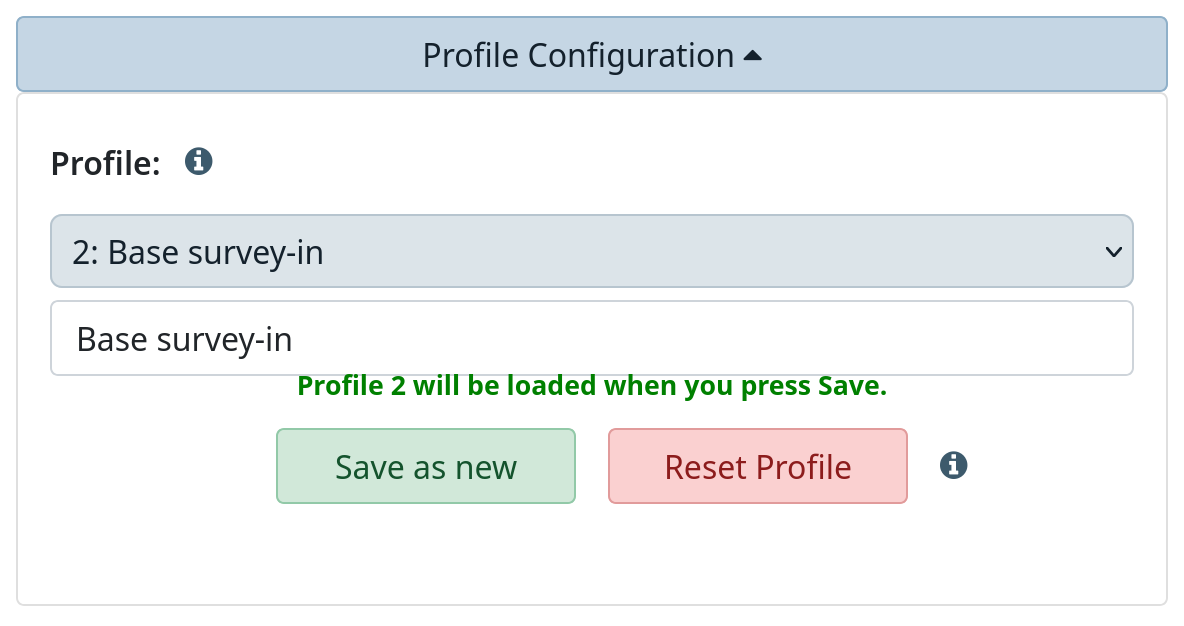
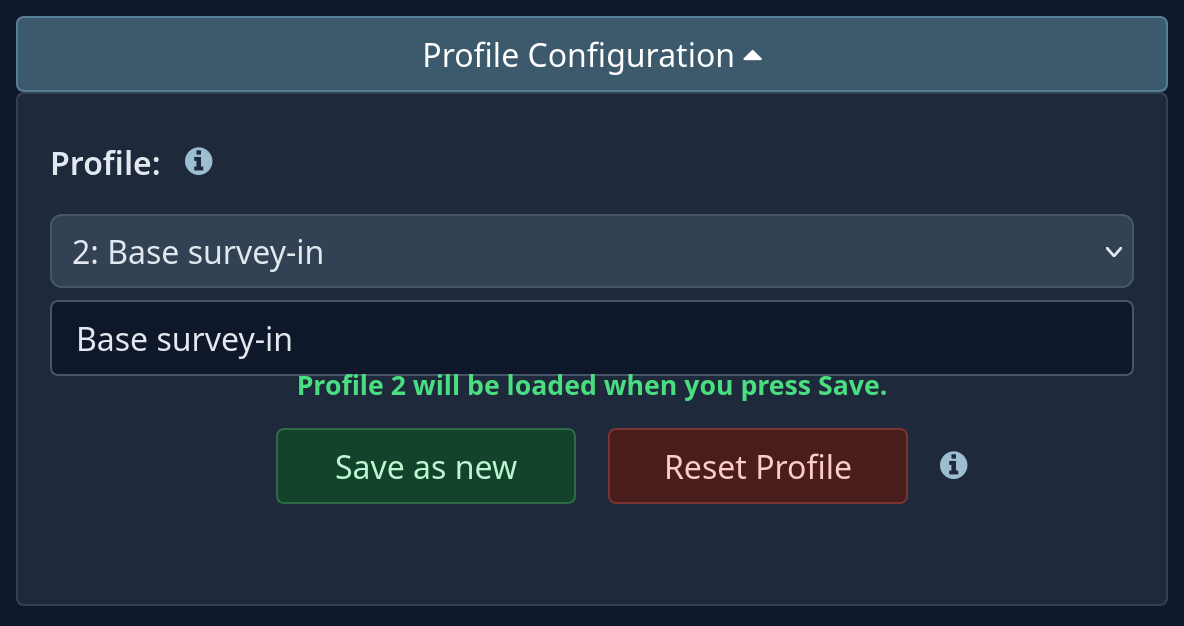
Figure 2 — Profile chosen, not yet in use
Another profile is shown, but not yet in use.
On Save the station loads the chosen profile, the page fills with its values and the tick moves. Choosing the ✓ profile again goes back to the one in use.
Look, then switch, then edit
While another profile is only shown, changes typed into its fields are not kept: Save only makes the switch. Switch first, then edit and Save again.
A new profile starts from factory settings
+ New profile, Reset Profile and an empty slot chosen from the serial menu give factory settings: no saved WiFi network, no caster. The page warns before Save. With those settings the station no longer knows your network: once out of Config mode it cannot join it, and the next time it enters Config mode it creates its own (see Using the panel › Reaching the page). A station reached only over the network is lost until someone is on site. To start from a working configuration use Save as new.
Buttons
| Button | What it does | Serial |
|---|---|---|
| Save as new | Copies what the page shows into the first free slot, which becomes the one in use, named ProfileN: rename it and Save. The profile you were on stays as last saved. With all eight used: All 8 profiles are in use: delete one first. Handy before experimenting. |
— |
| Reset Profile | Puts the profile in use back to factory settings at once, without asking, networks and casters included. A copy is kept first. | p → 10 |
| Undo change | Shown only when a copy exists from the last switch, reset, move or deletion: restores and loads it. | p → 12 |
| Move to 1 | Shown only when the profile in use is not number 1: moves it to slot 1 and empties the old slot. If slot 1 already holds a profile, the page asks first (Profile 1 (name) will be replaced by this one. It stays in the safety copy until the next change. Continue?): that profile is replaced and kept in the copy, so Undo change brings it back. | — |
| Delete a profile | Serial menu only. Asks which profile, then y. The profile in use cannot be deleted (That is the profile in use: switch to another one first). A copy is kept; no restart. |
p → 11 |
From the serial menu, a switch, reset or restore restarts the station when the menu is
closed with x (Rebooting to apply new profile settings. Goodbye!).