WiFi
Where: Panel › WiFi Configuration · Serial menu 6
The WiFi networks the MS2net reference station may join, the name it answers to on the local network, the way the configuration page is reached and the maximum transmit power of its radio.


Figure 1 — Animation: new network, WiFi mode
A network is added in the Network 3 drawer and Configure Mode goes from AP to WiFi.
WiFi signal
How strongly the station hears the network it is connected to, in dBm, refreshed every second. The value is negative: -55 is stronger than -70. It is the first thing to check when the page is slow or an NTRIP connection keeps dropping.
| Value | Meaning |
|---|---|
| above -60 dBm | good |
| -60 to -75 dBm | fair |
| below -80 dBm | the link drops: check the antenna and the distance |
- |
not connected to any network (the station is only an access point) |
Networks
Up to four networks, each in its own drawer (Network 1 to Network 4) whose header shows the network name. The station joins whichever saved network is in range; the ✓ on a header marks the one it is connected to right now (no tick: none). The drawers stay closed because the passwords inside are shown in clear, and only one opens at a time.
These networks serve everything that needs WiFi: the page in WiFi mode, the NTRIP client and server, the TCP/UDP services and the firmware check.
| Field | What it does | Values | Factory | Serial |
|---|---|---|---|---|
| SSID n | Name of the network, exactly as broadcast (upper and lower case count). | 0 to 49 characters | empty | 6 → 1 3 5 7 |
| PW n | Password of that network; empty for an open network. | 0 to 49 characters | empty | 6 → 2 4 6 8 |
In the serial menu, emptying an SSID also erases its password, and the passwords are shown in clear.
Office and field
Save the office network in the first slot and the site network, or the phone hotspot, in the second: the station finds the one in range by itself.
Name
The name the station answers to on the local network: the page opens at
http://<name>.local without knowing the IP address, and the browser tab shows the same
name. It is also the name of the network the station creates in AP mode. Panel only.
- Factory value:
ms2net-plus the last four digits of the serial number (for examplems2net-e5f6), so two units out of the box are told apart. Empty the box to go back to it. - Allowed: lower case letters, digits and hyphens, up to 31 characters, starting and
ending with a letter or a digit (for example
ms2net-base).ms2netalone is refused. - The new name works from the next restart.
When you leave the box, the station asks the network whether another device already answers to that name; if so, the name is refused and the page says it under the box:


Figure 2 — Name already used by another device
If the conflict appears only at start-up, the station keeps its built-in name for the time being and the page says: Another device at … already answers to this name: this station is using its built-in name for now.
Configure Mode
How the configuration page is reached once the station is in Config mode (see Using the panel › Reaching the page).
| Value | What happens | Factory | Serial |
|---|---|---|---|
| AP | The station creates its own open network, named as Name (with the built-in name: MS2net- plus the four digits in capitals, for example MS2net-E5F6). Join it and open http://192.168.4.1. Works anywhere. |
factory | 6 → a |
| WiFi | The station joins one of the saved Networks, with up to three attempts of 10 seconds each; the display shows the network and the IP address to open, and the page is also at http://<name>.local. The PC keeps its own network and Internet access. |
6 → a |
If none of the saved networks answers within the three attempts, 30 seconds in all, the
display shows No WiFi for two seconds and the station falls back to its own network, as
in AP: join it and open http://192.168.4.1. So WiFi too leaves the page reachable
in the field, away from the saved networks.
WiFi is required for the firmware check when the page opens and for remote configuration in Web page mode (see TCP/UDP and remote access › Remote configuration).
In WiFi mode the display shows the network the station has joined and its address:
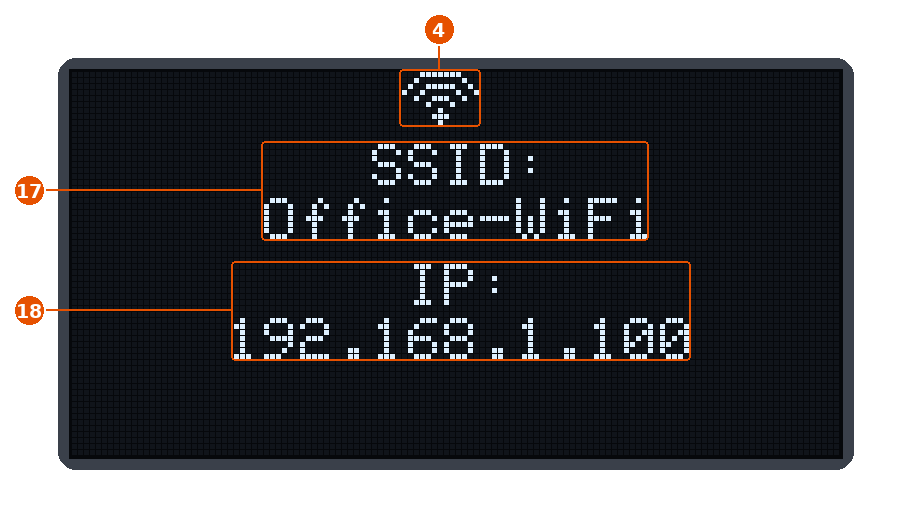
Figure 3 — Station on the office network
| No. | Icon | Meaning |
|---|---|---|
| 4 |  |
Keeps blinking: it only counts devices joined to the station's own network. |
| 17 | SSID: Office-WiFi |
The network the station has joined. |
| 18 | IP: 192.168.1.100 |
The address it received: open it from the same network. |

Figure 4 — Config mode on an existing network
Config from the button menu: WiFi Config while joining, then network and address.
In AP mode the screen is the one in The display › The station's own network.
Max WiFi Power
The ceiling for the transmit power of the station's radio. It holds for WiFi and ESP-Now, which share the radio and the antenna; Bluetooth is not affected. It takes effect within a second, without restarting.
| Field | What it does | Values | Factory | Serial |
|---|---|---|---|---|
| Max WiFi Power | Highest power the radio may transmit with. Less power means less range, for the WiFi as for ESP-Now. | 19.5 · 19 · 18.5 · 17 · 15 · 13 · 11 · 8.5 · 7 · 5 · 2 dBm | 11 dBm | 6 → p |
20 dBm e.i.r.p. in Europe
In Europe the power radiated on 2.4 GHz (e.i.r.p.) may not exceed 20 dBm, and it counts the antenna too:
e.i.r.p. = Max WiFi Power + antenna gain
- with the 8 dBi WiFi antenna of the kit, at most 11-12 dBm: the factory value, 11 dBm, gives 19 dBm;
- with a 2 dBi antenna it can go up to 17 dBm (19 dBm e.i.r.p.).
Serial menu only
| Item | What it does | Values | Factory | Serial |
|---|---|---|---|---|
| Captive Portal | In AP mode, phones and PCs that join the station's network are offered the page by themselves. | Enabled, Disabled | Enabled | 6 → c |
| MDNS | The station answers to <name>.local; disabled, only the IP address works. |
Enabled, Disabled | Enabled | 6 → m |
| WiFi max retry delay | Longest wait between two attempts to reconnect to the WiFi. | level 1 (shortest) to 7 (about 8 min) | 4 (about 1 min) | 7 → r (Network menu) |